> ## Documentation Index
> Fetch the complete documentation index at: https://docs.love.rip/llms.txt
> Use this file to discover all available pages before exploring further.
# Widgets
> Show live cards for Discord, Spotify, games, GitHub and more.
Widgets are little live cards on your page: your Discord status, a Spotify track, your Valorant stats, the weather and lots more. You can have up to 10.
**Where to find it:** Customize → **Widgets**, or [love.rip/dashboard/profile/widgets](https://www.love.rip/dashboard/profile/widgets).
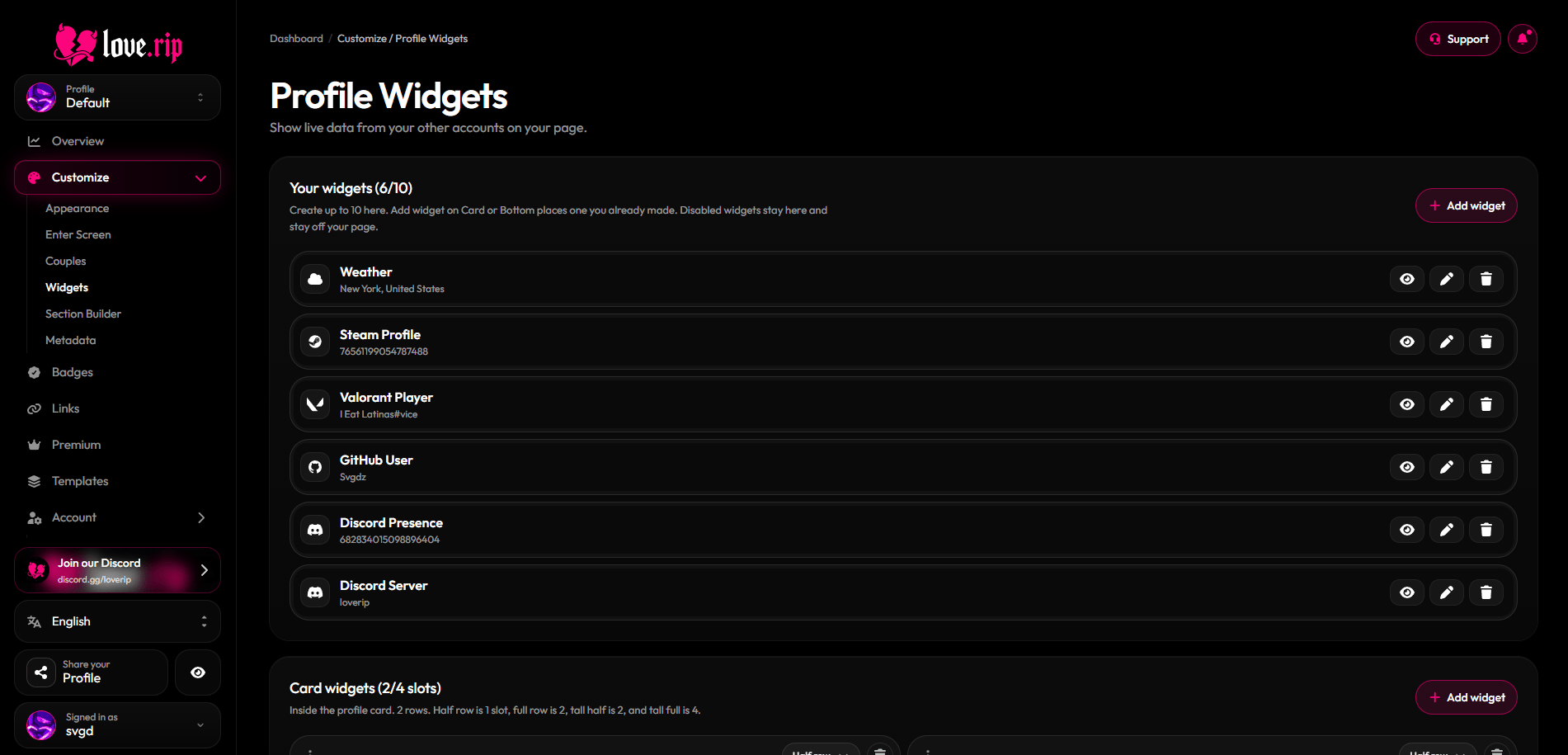 ## Add a widget
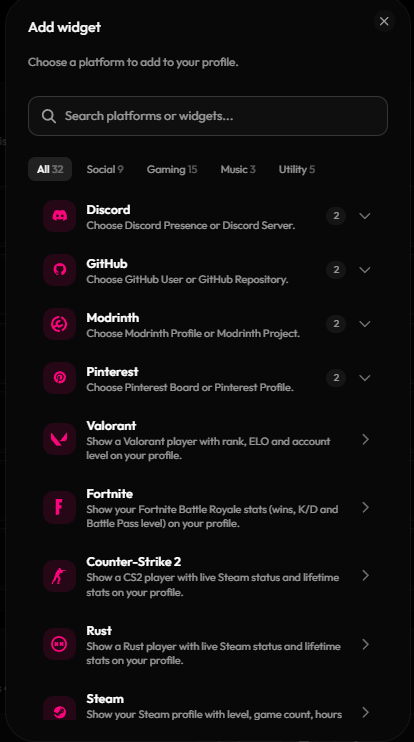
Click add and browse by category: **All**, **Social**, **Gaming**, **Music** or **Utility**.
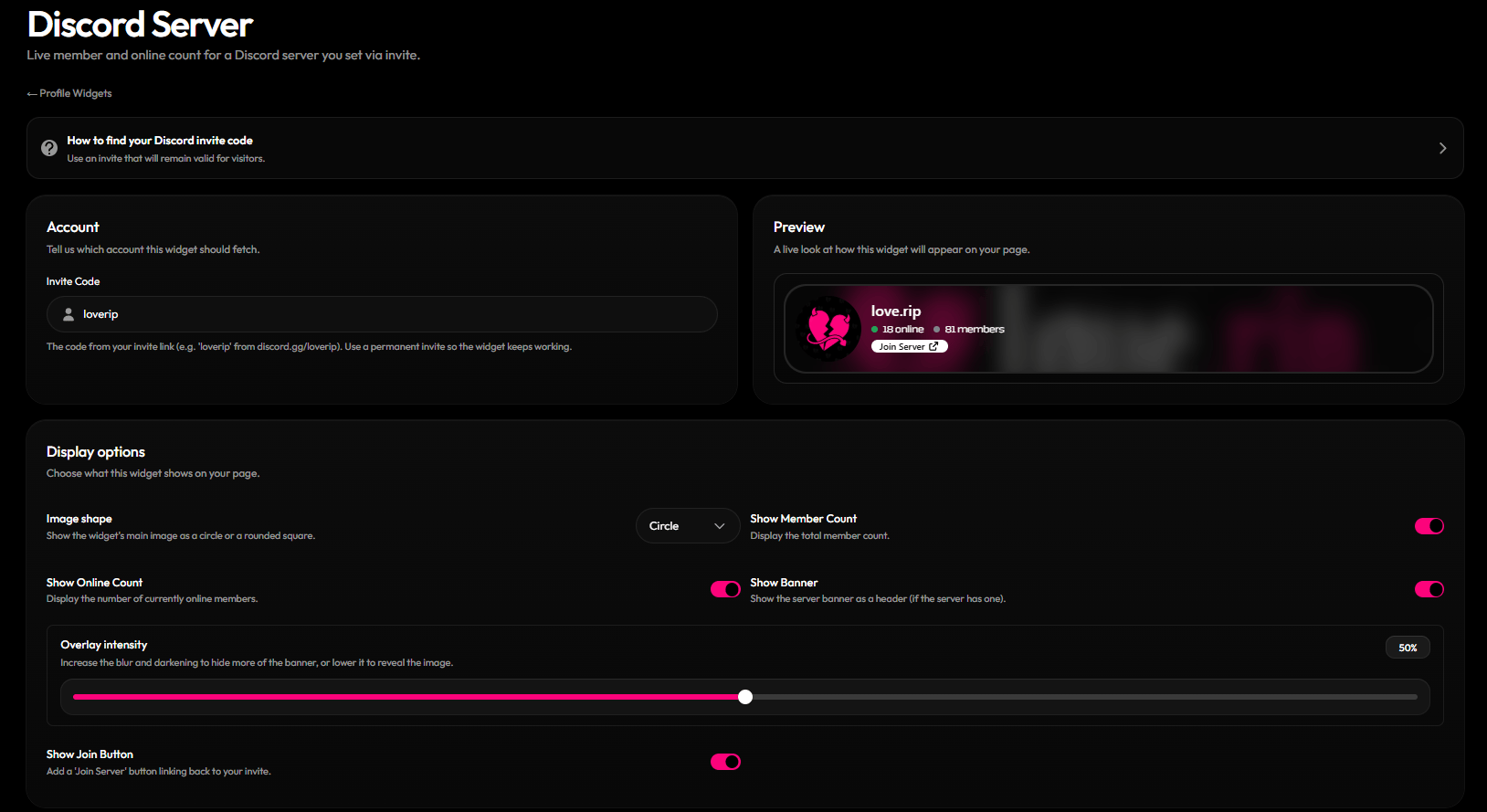
Enter the username, ID, link or code the widget asks for. Each widget shows a short guide on what to paste.
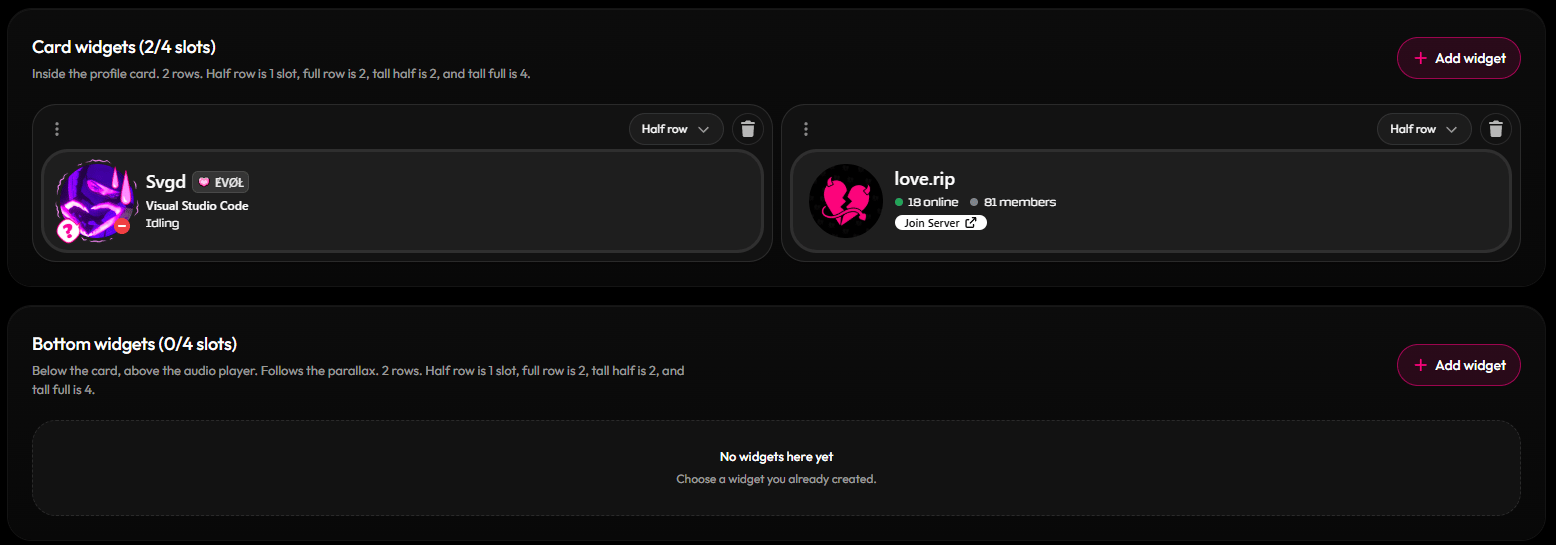
Put it on the **Card** (inside your profile box) or at the **Bottom** of your page. Pick **None** to keep it saved but hidden.
Set the size and any display options, check the preview, then save.
## Add a widget
Click add and browse by category: **All**, **Social**, **Gaming**, **Music** or **Utility**.
Enter the username, ID, link or code the widget asks for. Each widget shows a short guide on what to paste.
Put it on the **Card** (inside your profile box) or at the **Bottom** of your page. Pick **None** to keep it saved but hidden.
Set the size and any display options, check the preview, then save.
 ## Sizes and space
The Card area and the Bottom area each have 4 slots.
| Size | Slots used |
| - | - |
| Half | 1 |
| Full, Centered full, Tall half | 2 |
| Tall full | 4 |
## All widgets
Discord Presence, Discord Server, GitHub User, GitHub Repository, Pinterest Board, Pinterest Profile, Instagram Profile, YouTube Channel, Twitch Channel, Kick Channel, TikTok Profile, Twitter Profile, Telegram User, Telegram Channel.
FiveM Server, Modrinth Profile, Modrinth Project, Valorant Player, Fortnite Player, Counter-Strike 2 Player, Rust Player, Steam Profile, Overwatch Player, Genshin Impact Player, Roblox Player, Roblox Group, Roblox Game, Clash of Clans Player, Clash of Clans Clan, Clash Royale Player, Clash Royale Clan, Chess.com Player, Chess.com Club, Lichess Player, Lichess Team, Minecraft Player, Minecraft Server.
Spotify Track, Spotify Album, Spotify Playlist, Spotify Artist, Spotify User, Last.fm, Stats.fm.
Time, Weather, Image (upload up to 10MB), Custom Card.
The Instagram Profile widget is listed as Premium only.
Some widgets don't show live data yet: Fortnite, Instagram, Spotify User, Roblox Group, Roblox Game, Clash of Clans Clan, Clash Royale Clan, Chess.com Club, Lichess Team and Minecraft Server.
## Handy tips
Turn on **Use linked Discord account** if you've connected Discord in [Account settings](https://www.love.rip/dashboard/account?tab=connections). Or paste your User ID: in Discord, turn on Developer Mode, right-click yourself and pick **Copy User ID** (17–20 digits).
Use an invite link that never expires, or the widget will break when it runs out.
Paste your server's `cfx.re/join/` code (6 characters).
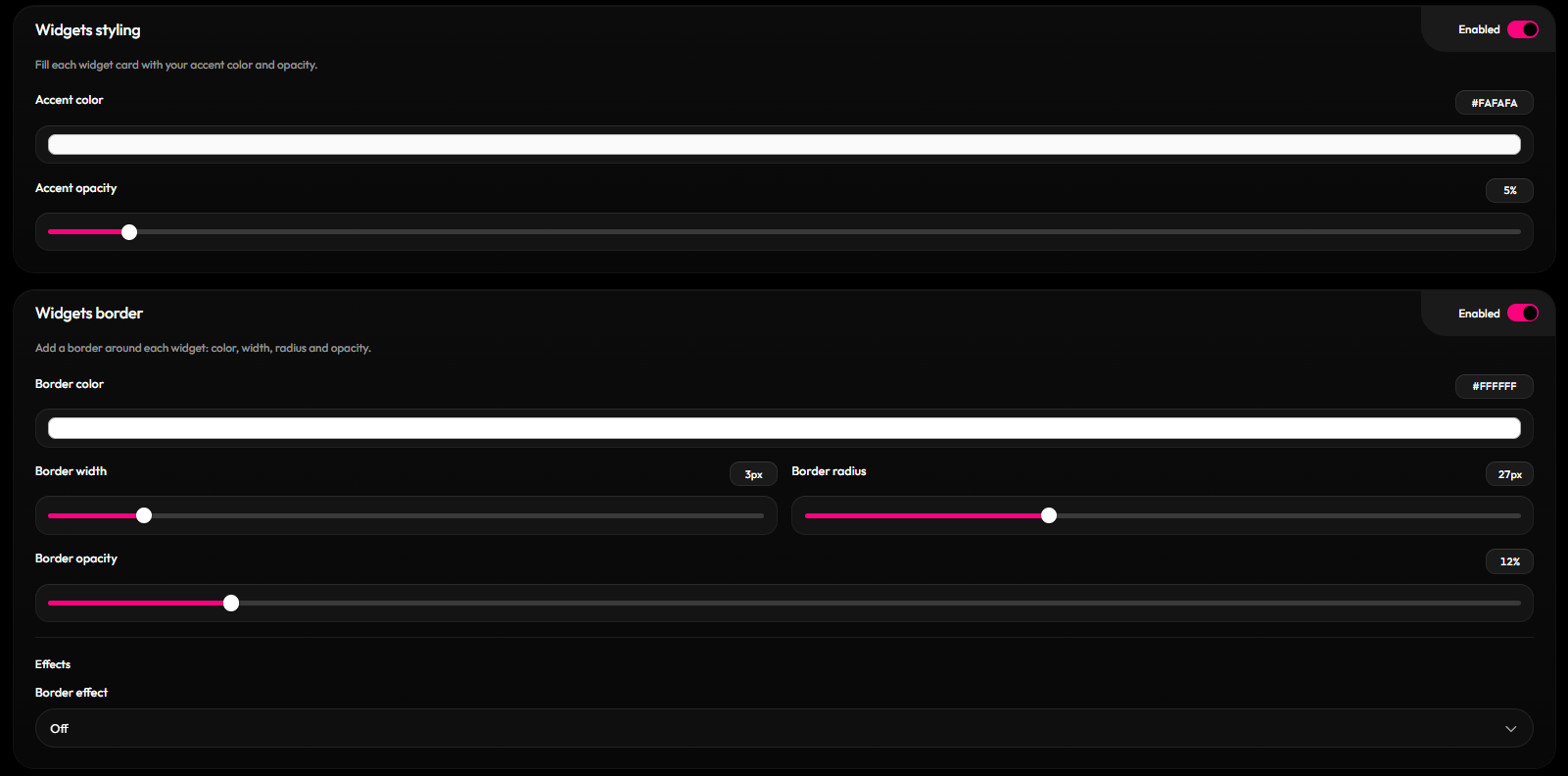
## Widget styling
Set a fill color and opacity and a border for your widgets.
### Border effects Premium
Add a moving border effect to widgets on the card or below it.
## Sizes and space
The Card area and the Bottom area each have 4 slots.
| Size | Slots used |
| - | - |
| Half | 1 |
| Full, Centered full, Tall half | 2 |
| Tall full | 4 |
## All widgets
Discord Presence, Discord Server, GitHub User, GitHub Repository, Pinterest Board, Pinterest Profile, Instagram Profile, YouTube Channel, Twitch Channel, Kick Channel, TikTok Profile, Twitter Profile, Telegram User, Telegram Channel.
FiveM Server, Modrinth Profile, Modrinth Project, Valorant Player, Fortnite Player, Counter-Strike 2 Player, Rust Player, Steam Profile, Overwatch Player, Genshin Impact Player, Roblox Player, Roblox Group, Roblox Game, Clash of Clans Player, Clash of Clans Clan, Clash Royale Player, Clash Royale Clan, Chess.com Player, Chess.com Club, Lichess Player, Lichess Team, Minecraft Player, Minecraft Server.
Spotify Track, Spotify Album, Spotify Playlist, Spotify Artist, Spotify User, Last.fm, Stats.fm.
Time, Weather, Image (upload up to 10MB), Custom Card.
The Instagram Profile widget is listed as Premium only.
Some widgets don't show live data yet: Fortnite, Instagram, Spotify User, Roblox Group, Roblox Game, Clash of Clans Clan, Clash Royale Clan, Chess.com Club, Lichess Team and Minecraft Server.
## Handy tips
Turn on **Use linked Discord account** if you've connected Discord in [Account settings](https://www.love.rip/dashboard/account?tab=connections). Or paste your User ID: in Discord, turn on Developer Mode, right-click yourself and pick **Copy User ID** (17–20 digits).
Use an invite link that never expires, or the widget will break when it runs out.
Paste your server's `cfx.re/join/` code (6 characters).
## Widget styling
Set a fill color and opacity and a border for your widgets.
### Border effects Premium
Add a moving border effect to widgets on the card or below it.
 This documentation is built and hosted on [Mintlify](https://mintlify.com), a developer documentation platform.